- Client
- In-house product (in development)
- Industry
- Salesforce reporting
- Services
- Product design & build, Apex development, Lightning Web Component, Analytics REST API integration, LLM integration with a privacy boundary
- Plain-English requests become native Salesforce reports
- Ambiguous terms answered from how the org really uses its fields
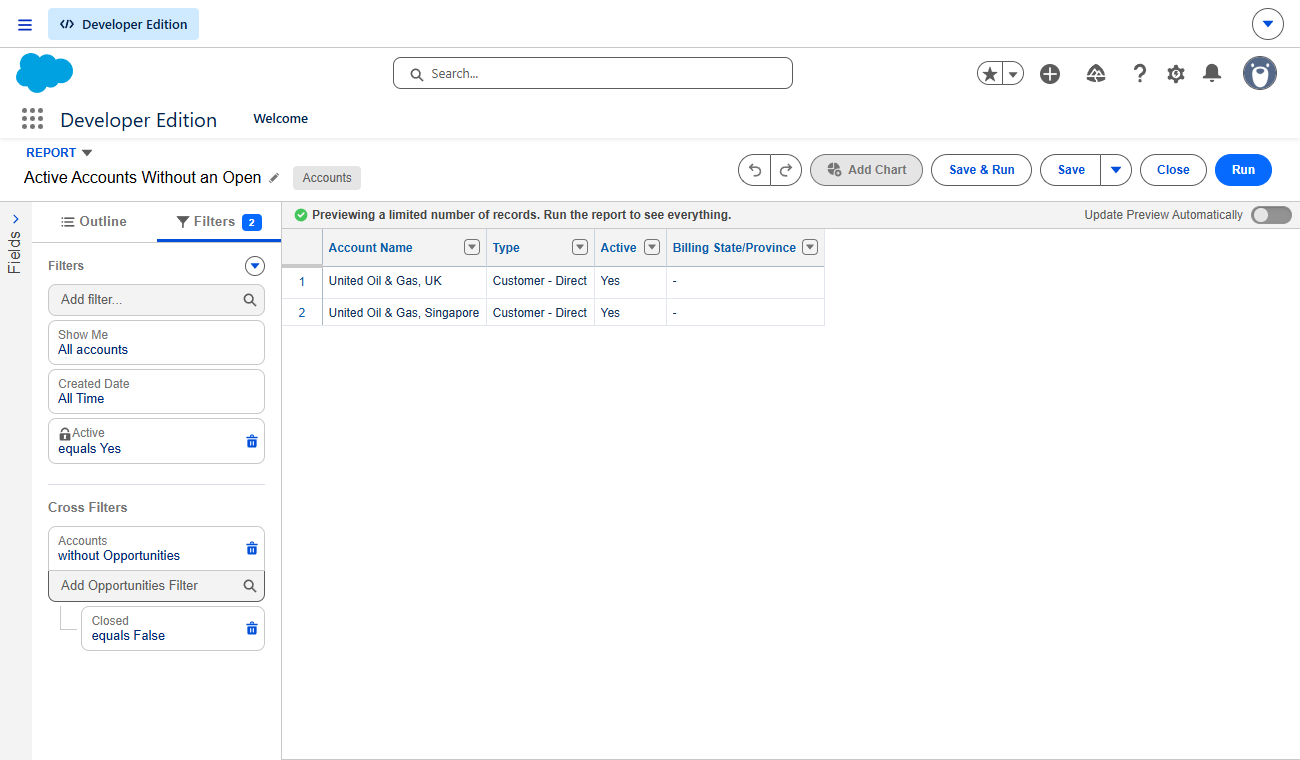
- Cross filters like "accounts without an open opportunity" handled correctly
- Only schema and aggregate statistics leave the org, never records
NorthStar is a product we are building ourselves. It started from a question we hear in almost every org: “can you pull me a quick report of…?” The request takes a minute to say and often an hour to fulfill, because someone has to work out which fields mean what, pick the right report type, and get the filters right.
We wanted a user to be able to ask for the report in plain English and get back a real Salesforce report. Not a chart in some other tool and not an export, but a native report in the Reports tab that anyone can open, run, and edit like one they built by hand.
The challenge
Turning a sentence into a report is easy to demo and hard to get right. The hard part is not the language. It is the org.
Take “show me all active accounts.” In a real org, “active” can live in three places: a custom Active field, a status picklist, or just “has an open deal.” Pick the wrong one and the report runs, returns rows, and is quietly wrong. That is worse than an error, because nobody checks a report that looks fine.
There was also a hard line on privacy. Plenty of teams will not send customer records to an outside model, and they are right not to. Whatever we built had to work without record data ever leaving Salesforce.
The approach
We put an analyzer in front of the model. Before it drafts a report, NorthStar profiles the relevant object inside the org: which fields are actually populated, how picklist values are distributed, and which fields existing reports already filter on. The model sees that profile, the field definitions, and the report types available. It never sees a single record.
When the profile points clearly to one field, NorthStar just uses it. When it does not, it asks, and the question comes from the org’s own data instead of guesswork.
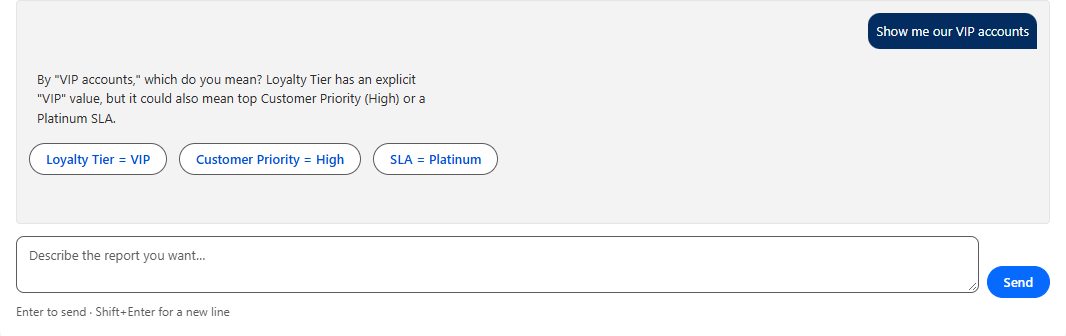
Nothing is created without the user seeing it first. NorthStar describes the report it intends to build in plain language, and the user either creates it or refines the request.
What we built
A chat that lives in Salesforce. A Lightning Web Component on its own app page. Every request is checked against the signed-in user’s own access, so nobody can report on fields they could not see anyway. There is no separate login and no second system to keep in sync.
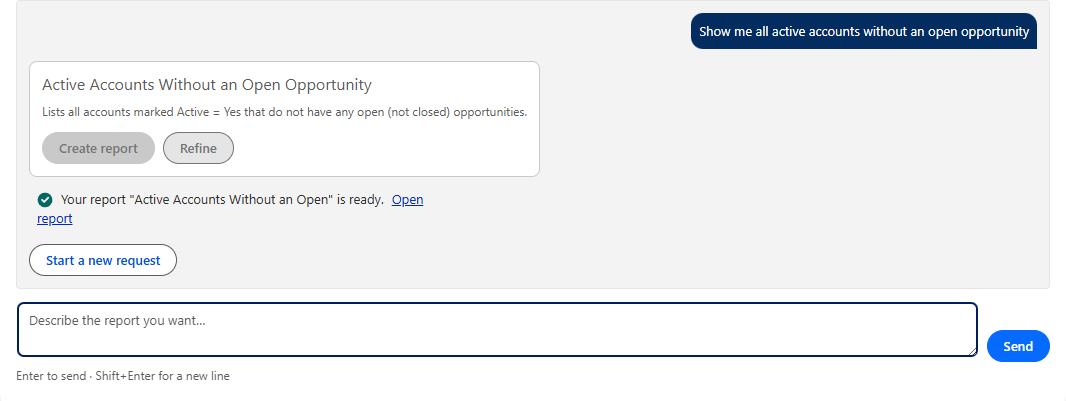
Reports built the way Salesforce expects. The report is created through Salesforce’s Analytics REST API, and that API is strict in ways its documentation does not make obvious. Columns have to be report-type tokens rather than field names, so NorthStar reads the report type’s own description and translates every field before it sends anything. “Accounts without an open opportunity” is a cross filter, which has its own format. Scope and date range get set on purpose, so a report never comes back empty just because of a default. We wrote up the details in a post on the Analytics REST API.
Guardrails the model cannot talk its way past. Whatever the model returns is treated as untrusted. Apex re-checks the proposed report on the server: the report type has to exist, and every field has to be visible to the user asking. Field names used in the analyzer’s queries are checked against the org’s schema, so neither the model nor the user can inject anything into a query. The model’s API key sits in a Named Credential, not in code.
How it runs
A user opens the app, types what they want, and answers a question if there is a real ambiguity. They review the proposed report, click Create, and open a native report a moment later. From there it behaves like any other report: run it, edit it, schedule it, or add it to a dashboard.
The result
A working assistant that turns plain requests into correct, native reports, running end to end in a real Salesforce org. The part we are proudest of is not the chat. It is the checks around it: an analyzer that grounds every answer in how the org is actually used, a strict privacy boundary, and live end-to-end testing that caught contract bugs the unit tests never would have.
Next on the list are dashboards, and remembering the answers users give to clarifying questions, so an org teaches NorthStar its own vocabulary over time.
If your team spends too much time building one-off reports, or you are weighing how to bring AI into Salesforce without sending your data out of it, let’s talk.